
| Brand | VITURE |
|---|---|
| Manufacturer | VITURE |
| Model | V1240 |
| Part Number | V1240 |
| Compatible Devices | Cellular Phones |
| Special features | The most seamless way to watch Apple's Spatial Video, Enabling Multi-Screen, Enhanced 3DoF, 1-Click 3D, VR Video Features on Your iPhone 15/15 Pro, Charge and Play for Steam Deck/ROG Ally/Legion Go/Gaming Handhelds and Phones |
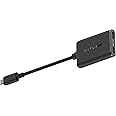
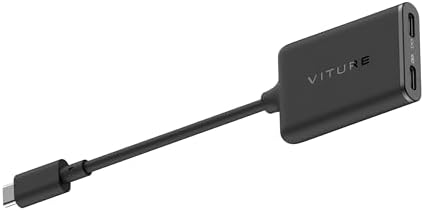
| Mounting Hardware | USB-C XR Charging Adapter |
| Number of Items | 1 |
| Batteries included | No |
| Batteries Required | No |
| Number of Ports | 3 |
| Manufacturer | VITURE |
| Item model number | V1240 |
| Product Dimensions | 1.55 x 19.71 x 5.84 cm; 70 g |
| ASIN | B0CLTZHWLM |

VITURE USB- C XR Charging Adapter for USB-C iPhone, Enabling Multi-Screen, Enhanced 3DoF, Spatial 3D, VR Video Features, Fits iPhone 17/16/15, Charge and Play for Other Devices
Purchase options and add-ons
| Compatible devices | Cellular Phones |
| Specific uses for product | Cell Phone |
| Connector type | USB Type C |
| Colour | Usb- C Xr Adapter for Iphone 17/16/15 |
| Item dimensions L x W x H | 15 x 197 x 58 millimeters |
About this item
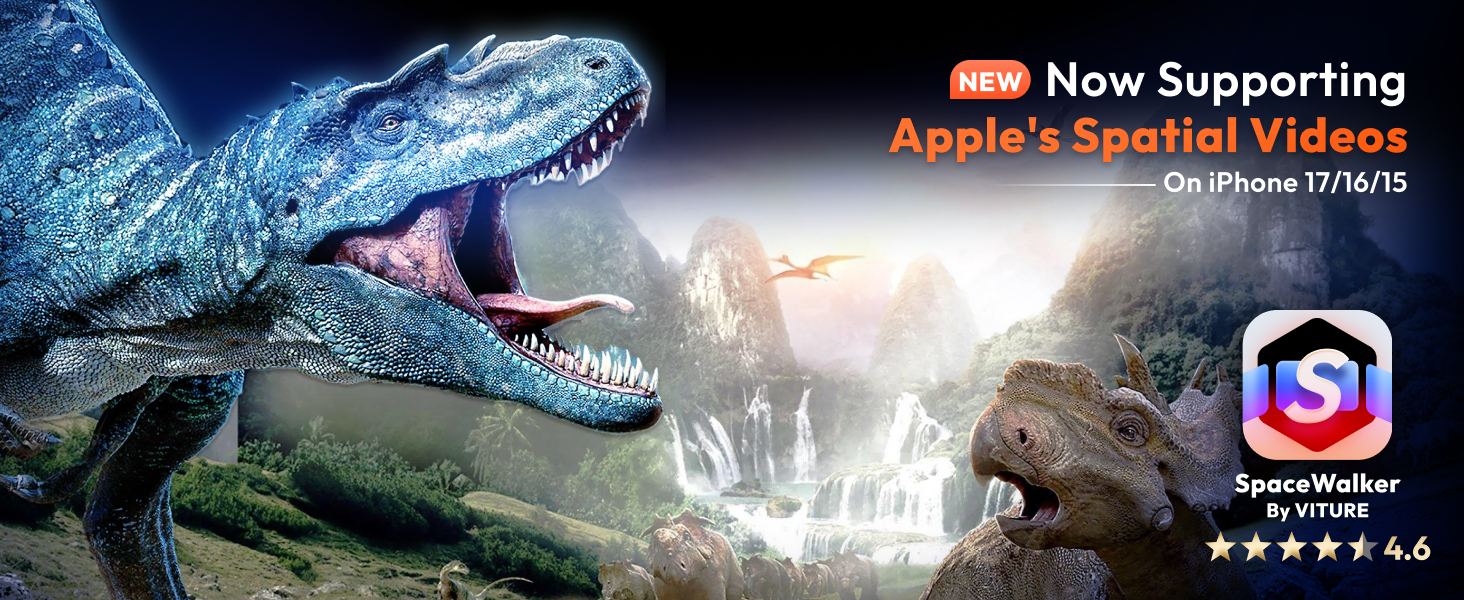
- The First XR Adapter to Unlock Head-Tracking on iPhone: Enjoy 3DoF, Multiple Screens, 1-Click 3D, Seamless Spatial Audio, and More! (All features work within SpaceWalker, with 3DoF available in full-screen mode.)
- Please Note For VITURE Luma Ultra Users, this adapter offers partial compatibility. Please review the feature breakdown below to set proper expectations. · Supports: Audio/Video Output, Charging Passthrough. · Not Yet Supported: Immersive Features (Head Tracking, 180°/360°/3D VR, 3DoF, OSD Menu Controls)
- Charge & Play: Connect to power without disconnecting your XR glasses.
- Clearly marked ports make connecting a breeze.
- Usable with virtually any USB-C device.
- Small, lightweight, and easy to carry
- iPhone 16e & iPhone Air are not compatible with VITURE XR Glasses.
- Please note that XR Glasses are not included with this accessory.
- How To Update: 1.Connect the USB-C XR Charging Adapter and XR Glasses to your iPhone, then open SpaceWalker App. 2. Once connected, the app will automatically detect the firmware version of your adapter. If an update is available, an update prompt will appear. *Please note: during the update, disconnect the XR Glasses from the adapter and update the adapter only. 3.Tap Confirm to start the upgrade. The screen will display the update progress. The entire process takes approximately 1–2 minutes. Keep the connection stable and leave the app open on the upgrade page. 4.After the upgrade is complete, follow the on-screen instructions and unplug the adapter to finish the firmware update.
Frequently bought together

Videos for similar products
From the brand
-
About VITURE
Founded by Google & Apple alumni, VITURE has quickly become the leader of the next generation of digital entertainment devices.
A benchmark-setting company in the field, we've engineered our XR ecosystem for mass-market appeal by combining true technological innovation with fashion-driven design, enabling users to stream videos, play games, and work anywhere, anytime.
-
-
-
Buy One, Get One Free!
-
The BEST Of Everything!
-
Game & Stream Anywhere Anytime
-
Portable Private Workstation!
-
Play Together, Stay Together!
-
-
-
-
-
-
Product Description
Product Comparison
USB-C Adapter For USB-C iPhone | HDMI XR Adapter For iPhone | USB-C Charging Adapter |
|---|---|---|
| Best For For iPhone 17/16/15, iPad with USB-C port, Charge While Playing | Best For For Lightning iPhone: iPhone 14 & Earlier Models | Best For Charge While Playing, perfect for Steam Deck, ROG Ally, android phones and more |
| More Key Features Enabling Mutiscreen/ Enhanced 3DoF/ VR video/ 1-Click 3D features | More Key Features Enabling Mutiscreen/ Enhanced 3DoF/ VR video features | More Key Features Support Switch together with external power bank |
| Spatial Videos & 1-Click 3D* ✔️ | Spatial Videos & 1-Click 3D* No | Spatial Videos & 1-Click 3D* No |
| Multi-screen & Enhanced 3DoF ✔️ | Multi-screen & Enhanced 3DoF ✔️ | Multi-screen & Enhanced 3DoF No |
| VR 360 Videos & Ambient Mode ✔️ | VR 360 Videos & Ambient Mode ✔️ | VR 360 Videos & Ambient Mode No |
Product information
Technical Details
Additional Information
| Date First Available | Nov. 19 2023 |
|---|---|
| Customer Reviews |
4.2 out of 5 stars |
Feedback
Product details
- Product Dimensions : 1.55 x 19.71 x 5.84 cm; 70 g
- Manufacturer : VITURE
- ASIN : B0CLTZHWLM
- Item model number : V1240
- Customer Reviews:
Product summary presents key product information
Keyboard shortcut
Shift
+
Alt
+
opt
+
D
Product Summary: VITURE USB- C XR Charging Adapter for USB-C iPhone, Enabling Multi-Screen, Enhanced 3DoF, Spatial 3D, VR Video Features, Fits iPhone 17/16/15, Charge and Play for Other Devices
From VITURE
4.2 out of 5 stars, 418 ratings
Customer reviewsAbout this Item
- The First XR Adapter to Unlock Head-Tracking on iPhone: Enjoy 3DoF, Multiple Screens, 1-Click 3D, Seamless Spatial Audio, and More! (All features work within SpaceWalker, with 3DoF available in full-screen mode.)
- Please Note For VITURE Luma Ultra Users, this adapter offers partial compatibility. Please review the feature breakdown below to set proper expectations. · Supports: Audio/Video Output, Charging Passthrough. · Not Yet Supported: Immersive Features (Head Tracking, 180°/360°/3D VR, 3DoF, OSD Menu Controls)
- Charge & Play: Connect to power without disconnecting your XR glasses.
- Clearly marked ports make connecting a breeze.
- Usable with virtually any USB-C device.
- Small, lightweight, and easy to carry
- iPhone 16e & iPhone Air are not compatible with VITURE XR Glasses.
- Please note that XR Glasses are not included with this accessory.
- How To Update: 1.Connect the USB-C XR Charging Adapter and XR Glasses to your iPhone, then open SpaceWalker App. 2. Once connected, the app will automatically detect the firmware version of your adapter. If an update is available, an update prompt will appear. *Please note: during the update, disconnect the XR Glasses from the adapter and update the adapter only. 3.Tap Confirm to start the upgrade. The screen will display the update progress. The entire process takes approximately 1–2 minutes. Keep the connection stable and leave the app open on the upgrade page. 4.After the upgrade is complete, follow the on-screen instructions and unplug the adapter to finish the firmware update.
Product description
Feedback
Did you find this product summary feature useful?